.avif)





.svg)
.svg)


Sommaire



Publié le
4/3/26
-
5 min

Webflow is a no-code website builder that allows users to create professional websites without having to write a single line of code. It has become one of the most popular no-code tools in the world, with over 3.5 million users. It allows you to design responsive and innovative websites. It is therefore ideal for people who want to create a website without having any technical knowledge of web development.
Over the years, the Easyweb agency has specialized in the use of this software, which is why we have chosen to present it to you in this article.
Webflow is a visual content management system (CMS) that allows users to create websites without having to learn how to code, as it is based on artificial intelligence. The tool (launched in 2013 by Vlad Magdalin, Sergie Magdalin, and Bryant Chou) quickly became popular with web designers and developers looking for a simple and effective way to create professional websites, as it offers a variety of features that make it attractive to users of all skill levels. These features include:
This is what sets Webflow apart from the competition. Yes, there are many innovative CMSs available in 2024, but let's stick with the one without which our agency would not exist. 🌞
Webflow is a very intuitive and easy-to-use tool. It consists of three main sections:
We will now help you use it effectively.
Webflow offers a wide range of ready-to-use templates that can be used to create different types of websites. These templates are designed by professional designers and can be easily customized to meet your needs.
To choose a template, you can use the search bar or filters to find one that suits your needs. Once you've found a template you like, you can edit it to customize it.
If you want to create your own layout, you can use Webflow's editor (intuitive for web design novices) to create complex layouts without having to write a single line of code.
To create your own layout, you can use the following elements:
Once you have created your site layout, you can add content elements.
Text is as useful to a website as an engine is to a car. You can change the size, color, font, and formatting of the text to suit your needs while considering the conversion funnel you want to implement.
Images are used to enhance the user experience and also appeal to Google's robots. You can change the size, position, brightness, and contrast of the images you import into your website. Don't forget to convert them to Webp format and compress them before importing, then describe them by adding an alt tag for each one. If you have trouble with this last step, here is an article that will show you two methods for finding the missing alt attributes for your web images.
Forms are used to collect data from confirmed visitors. You can create forms to collect email addresses, contact details, or order information. This will allow you to convert your prospects into customers through automated prospecting, for example.
Videos are used to add quality content to the various pages of your website. You can easily import videos from YouTube, Vimeo, or your own computer to Webflow. As with images, don't forget to include the content mentioned in the video in the form of an alt tag.
You can customize the style of your site by changing the colors, font, or animations.
To customize the colors of your Webflow website, you can use the color settings in the Style panel. These settings allow you to change the base colors, accent colors, and contrast colors of your site.
Base colors are the colors that form the foundation of your site. They are used for elements such as backgrounds, titles, and fonts.
To change the base colors of your site, click Base Colors in the Style panel. You can then change the following colors:
Accent colors are used to draw attention to important elements on your site. They are found in elements such as buttons, links, and navigation elements.
To change the accent colors on your site, click Accent Colors in the Style panel. You can then change the following colors:
Contrast colors are used to create contrast between different elements of your site, such as borders, shadows, and fonts.
The contrast colors you can change are as follows:
To change the font on your Webflow website, you can once again use the font settings in the Style panel. These settings allow you to change the font, its size, and the style of the text elements on your site.
To change the font on your site, click Fonts in the Style panel. You can then change the following settings:
You can add animations to your site to make it more attractive and interactive. To add animations to your Webflow site, you can use the animation settings in the Style panel. These settings allow you to add animations to individual elements or to your entire site.
To add animations to your site, click Animations. You can then modify the following settings:
Once you have finished creating your site, you can publish it online.
To publish your Webflow site, you need to follow these steps:
If you already have a domain, you can connect it to your Webflow site. This will allow your website to be accessible at your domain address.
To connect your domain, you must follow these steps:
Once you have selected a hosting plan and connected your domain, you can publish your website by clicking the Publish button.
Webflow offers three pricing plans:
The Solo plan is ideal for small businesses or individuals who want to create a simple website. It allows you to create a website with a limit of 10 pages and 100 GB of storage.
The Business plan is designed for medium-sized businesses or freelancers who want to create a more complex website. It allows you to create a website with a limit of 100 pages and 1 TB of storage.
The Enterprise plan is for large companies that need custom features and integrations.
In addition, the Webflow CMS will charge you for your website's domain and hosting fees, as well as other additional features if you need them. That's why we recommend reading our article on the costs of a Webflow website.
Webflow is a highly versatile tool that can be used to create different types of websites, including SaaS and e-commerce sites.
To create a SaaS site with Webflow, you need to think about integrating login, profile, payment, and support pages, as well as adding the necessary user management features such as billing and support.
Learn how to create your first SaaS site on Webflow with the attached article Webflow: Create an Effective SaaS Site.
A Webflow e-commerce site is designed to sell, which is why it's important to add product pages, a shopping cart, payment and tracking pages, and integrate the necessary features into the website, such as inventory management, order management, and payments.
Find out how to create an e-commerce site with Webflow here.
Webflow offers a wide range of ready-to-use templates that can be used to create different types of websites. These templates (as shown in the screenshot below) are designed by professionals and can be easily customized to meet your needs.
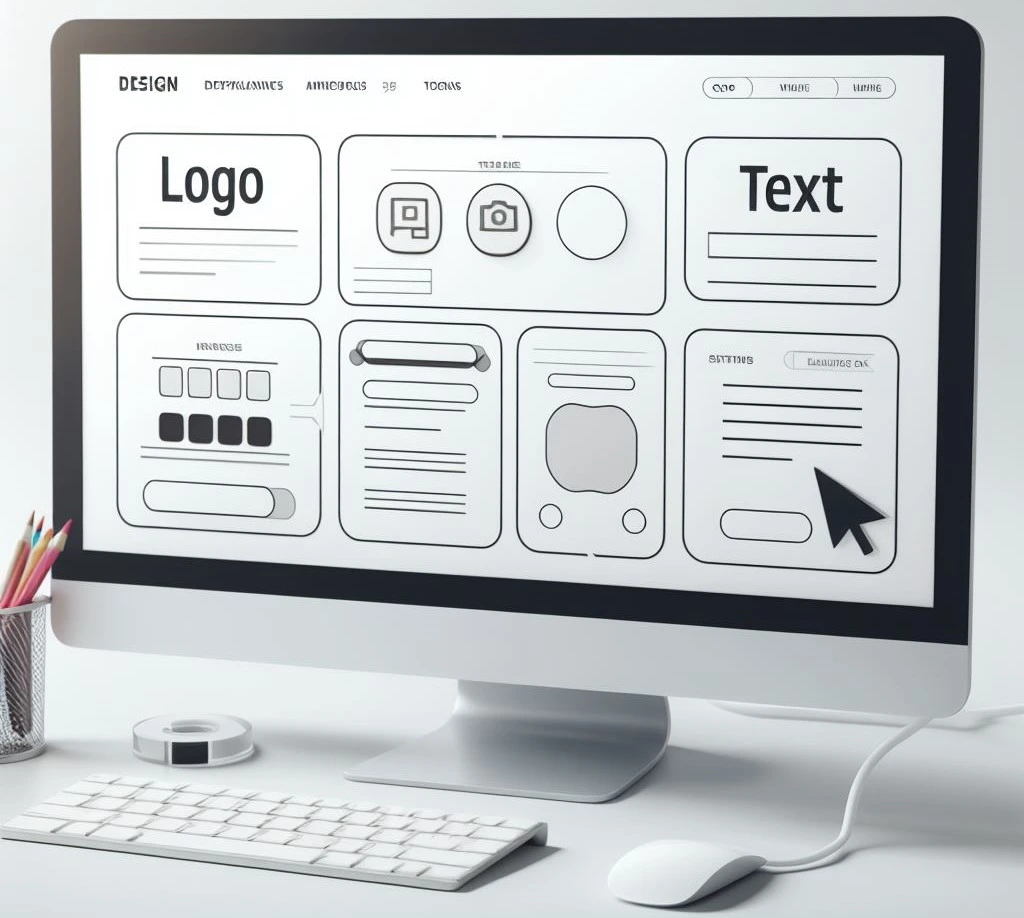
Here is some additional documentation to help you learn which templates to choose based on your expectations.
Webflow integrates with many third-party applications and services, allowing you to create more comprehensive and functional websites. Here we present our selection of the best Webflow integrations to help you improve the traffic you generate and, potentially, increase your leads.
Webflow is a powerful and versatile CMS that allows users to create professional, responsive websites without having to write a single line of code. It is ideal for small businesses, freelancers, and large companies that want to create an effective website at a low cost.
If you are not very familiar with Webflow, we recommend that you consult with a digital agency specializing in no-code to monitor the progress of your project and avoid unnecessary complications.